
iPhone and iPad
The GPS track inside your GoPro video, out as a GPX file.
GPXCam connects to your GoPro and shows you what you recorded — the video and the route it took, side by side — before a single file leaves the card. Import what you want, export the route as GPX, make a smaller video to send. Everything stays on your phone.
What it does
- Browse the card. Connect over Wi‑Fi or a USB cable. Every recording is listed with its still and size. Open one and its proxy streams from the camera while the route draws on a map — nothing is downloaded to look.
- Import what you want. The route alone, the camera's small proxy, or the full‑resolution file. The route comes with whichever you pick. Transfers queue and carry on while you use the rest of the app.
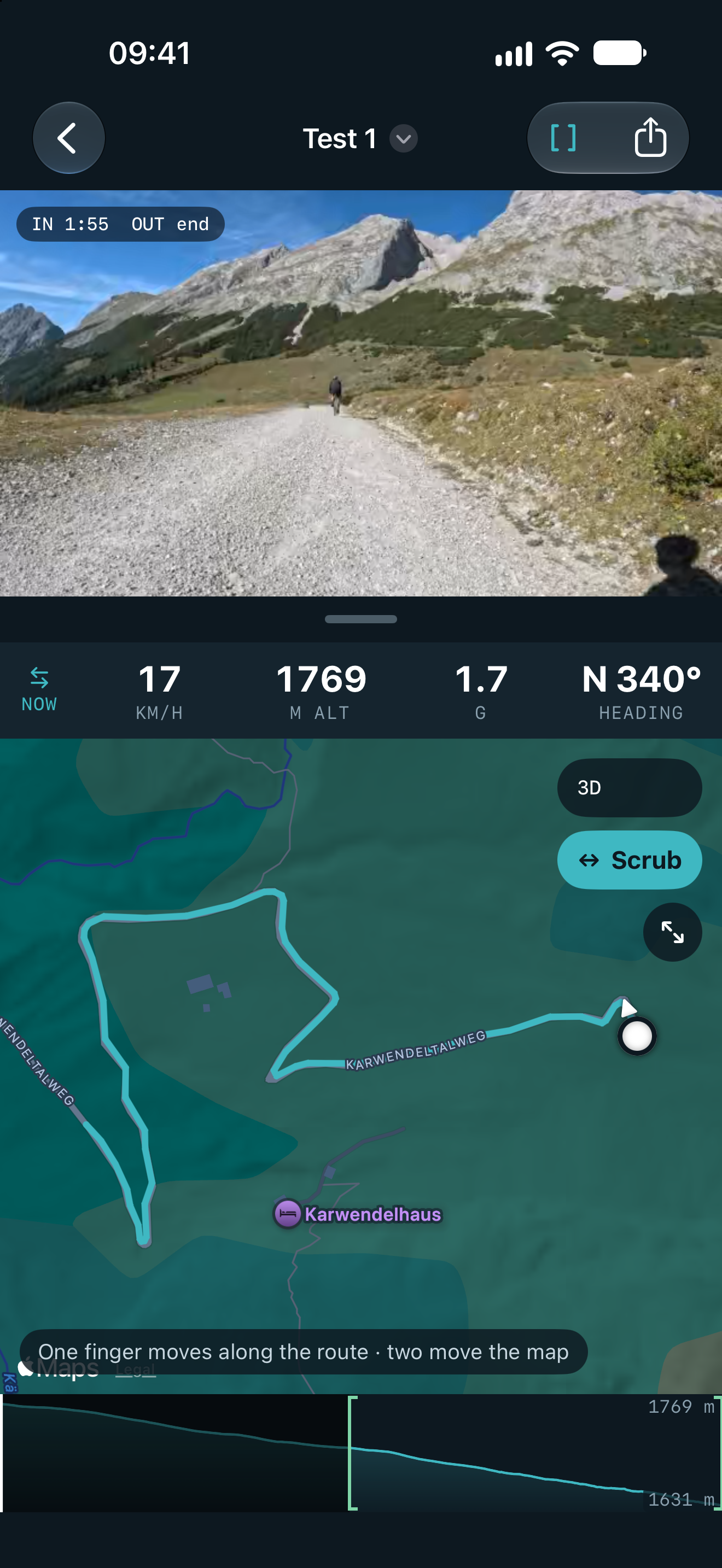
- Watch video and route together. Live speed, altitude, g‑force and heading as the video plays. One finger scrubs along the route and the video follows; two fingers move the map. Flat map or 3D terrain.
- Export the route as GPX. One track per recording, chapters merged, ready for any mapping or training app.
- Make a smaller video. Set an in and out point and a shape, then pick a preset or choose the format, resolution and bitrate yourself. Leave everything as recorded and the part is copied in seconds, nothing re‑encoded.
Works with GoPro cameras that record GPS. Tested with the HERO13 Black over Wi‑Fi; USB needs a HERO10 or later. GPXCam is not affiliated with or endorsed by GoPro, Inc.
Help
Connecting over Wi‑Fi
- Turn the camera on and tap Connect in GPXCam, then Wi‑Fi.
- iOS asks to allow Bluetooth — that's how the app wakes the camera and reads its Wi‑Fi details.
- iOS asks to join the camera's network. Tap Join. The app asks for local‑network access the first time; allow it, or it can't talk to the camera.
- The card appears in about fifteen seconds. While you're on the camera's Wi‑Fi the phone has no internet, so the map needs mobile data.
The app leaves the camera's Wi‑Fi when you close the camera screen or put the app away — unless a transfer is running, in which case it leaves by itself when the queue empties.
Connecting over USB
Plug the camera into the phone with a USB‑C cable and choose USB cable. Transfers are faster and the phone keeps its own internet. Needs a HERO10 or later.
Opening a recording on the card
The proxy streams straight from the camera, and the route is fetched as soon as the recording opens — a few seconds per chapter. Choose Route only, Proxy or Full‑res and tap Import; Export GPX shares the route without importing anything.
Scrubbing
On a recording's screen the map opens in scrub mode: one finger drags along the route and the video follows; tap a point to play from there; two fingers pinch, pan and turn the map. The Scrub button switches to ordinary one‑finger panning. The elevation profile under the map zooms with it, so finding a moment in an hour's ride is a pinch on the map and a drag on the profile.
Exporting a video
Set an in and out point with the [ ] button above the video, and the shape from the share menu's Shape section. Then share ▸ Video…. Simple offers presets; Advanced lets you choose format, resolution and bitrate, each opening on the recording's own value. The exported video carries no GPS track — the route goes alongside as GPX.
Units
Settings (the gear on the first screen) sets km/h or mph, km or miles, metres or feet, each on its own. GPX files are always written in metres, as the format requires.
Troubleshooting
- "No GoPro found"
- Make sure the camera is on and Bluetooth is on for the phone. On the camera, Preferences ▸ Wireless Connections must be on. Pairing with GoPro's own Quik app first helps some cameras advertise.
- The join prompt never appears, or joining fails
- Forget the camera's network in Settings ▸ Wi‑Fi, turn the camera off and on, and connect again.
- The map is blank while connected
- The phone has no internet on the camera's Wi‑Fi. Turn mobile data on, or look at the route after importing.
- A recording says "no proxy"
- Some modes don't make one. There is nothing to stream; import the full‑res file to watch it.
- "The camera never got a fix"
- GPS was off, or the camera hadn't locked on before recording started. The video imports; there is no route to show.
- Converting stopped
- A conversion runs only while the app is open on screen. Start it again and keep the app in front until it finishes.
Support
Email support@kernowlabs.com. Say which camera and which iPhone, and what you tapped. We read every message.
Privacy: GPXCam collects no data. Read the policy.